
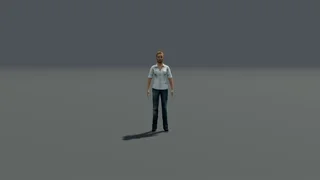
Camera shots & angles
Find your framing with shot sizes, camera angles and lens choices.
Explore camera shotsGo beyond prompts. Plan camera movement, framing and timing in 3D, then export an MP4 visual reference to guide AI video generation—with more control over how your shot unfolds.
Camera movements for AI video.
A 24-second demo: see camera movements, shape framing and timing in 3D, and export an MP4 visual reference to guide AI video generation.
Find your starting shot.
Start with a camera setup, a movement, or a complete example.
Find your framing with shot sizes, camera angles and lens choices.
Explore camera shotsPlan a camera movement for a reveal, an orbit around a character or a tracking shot. Compare camera moves and refine camera blocking in 3D before AI video generation.
Explore camera movement examplesCopy a complete setup, then shape the camera, characters and timing.
Explore examplesCamera control, built-in assets, character actions and shot preview. A head start on your shot, with no Blender experience needed.
Camera control
Position, framing, focal length and motion. Movement, rotation and zoom presets include directional variations.
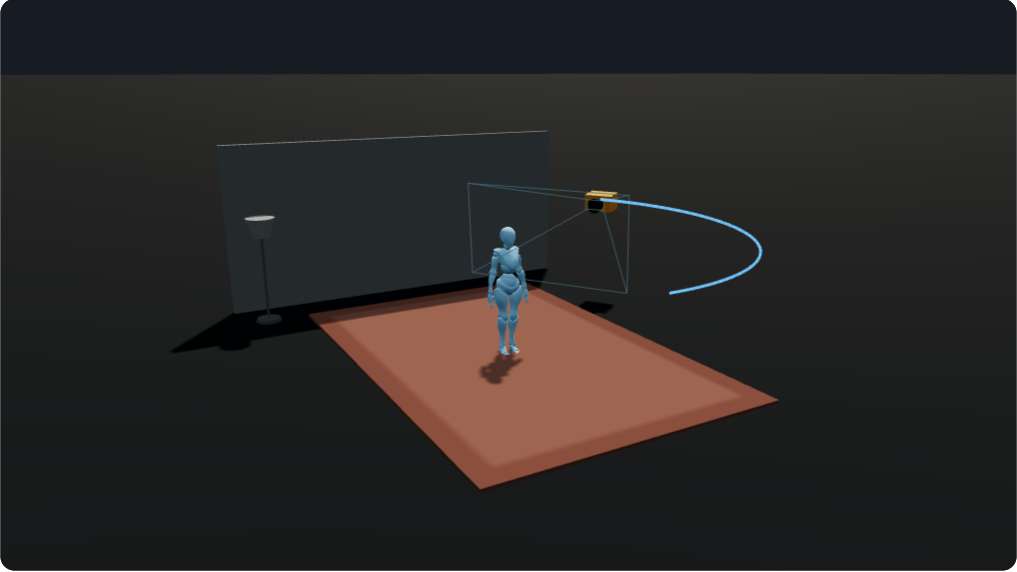
Character blocking
Built-in performances and poses, with editable paths, action duration and speed.
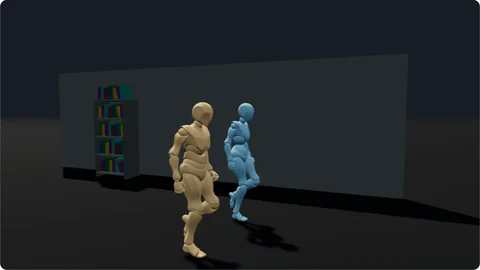
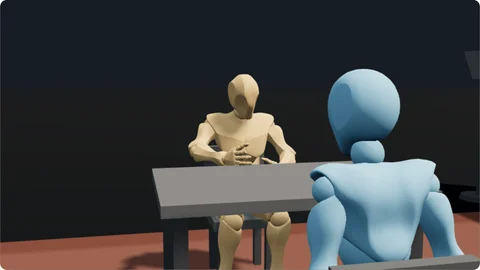
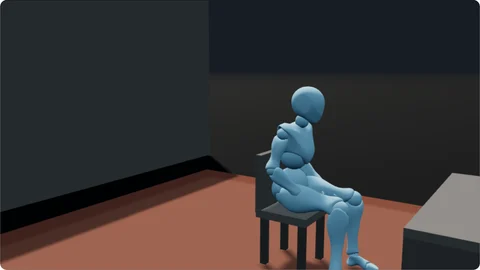
Scenes & 3D assets
Characters, props and furnished environments. Scene sets are placed and moved as a whole.
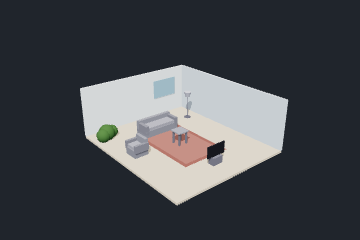
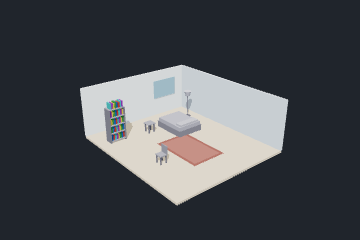
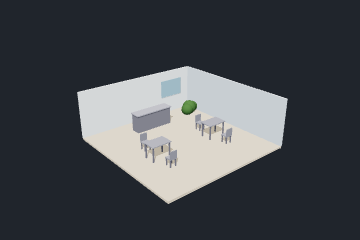
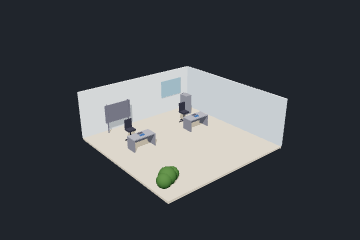
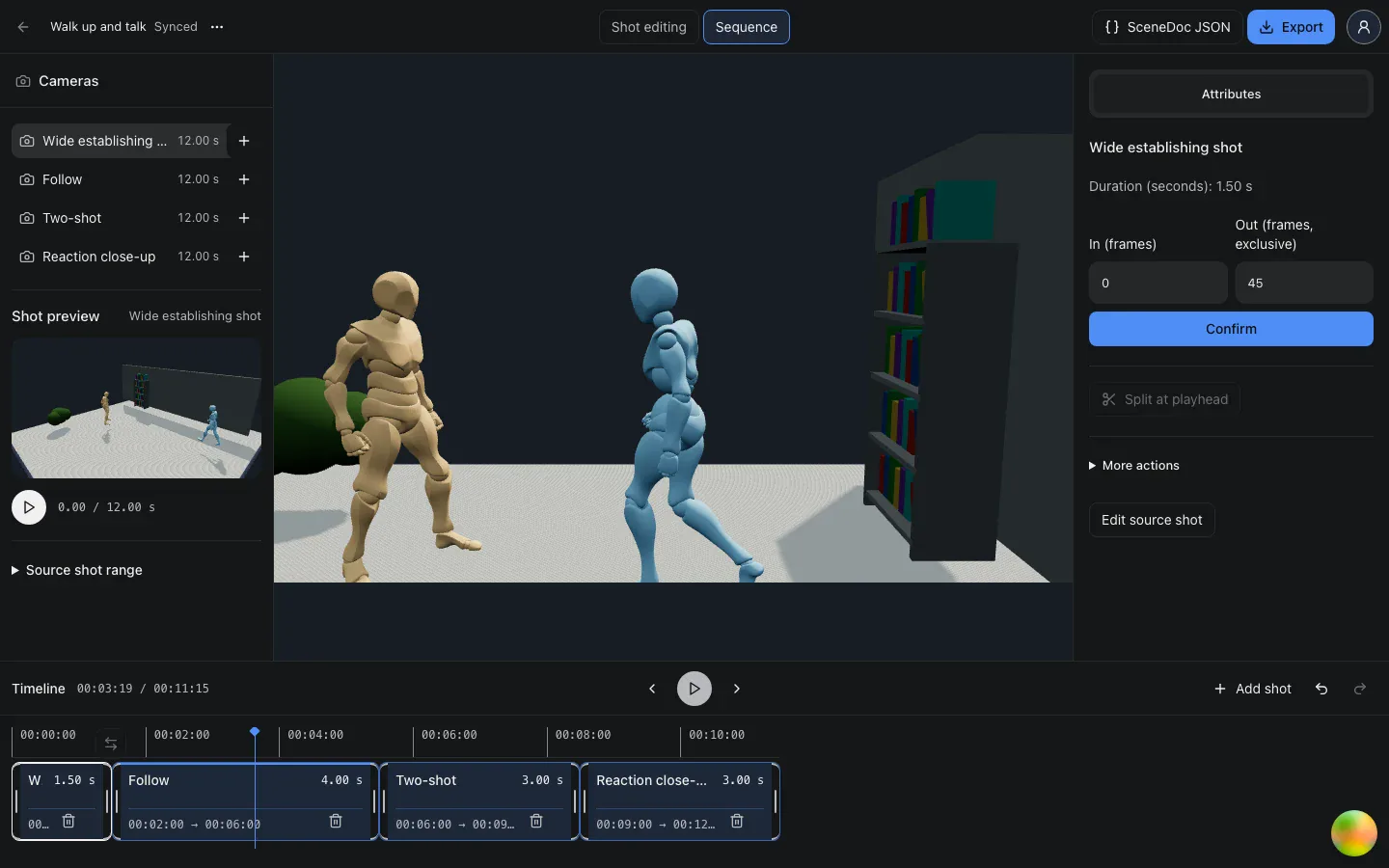
Timeline & shot preview
Multiple camera views, one shared performance. Clip timing, sequence playback and reference-video export.
Prompts describe intent, but space, camera paths, and timing are hard to convey precisely in words. Make them visible in 3D, and give generation a clearer reference.
“A character walks toward her while the camera slowly orbits…”
From words to visual reference
After: 3D Previs
3D visual referenceMake your intent visible. Give generation a clearer reference.
One example, three steps, and a reference video for your next production step.
Preview a scene without signing in. Sign in when you are ready to create your own editable copy.
Change characters, camera moves and timing. Play the sequence and refine the framing and cuts.
Download a silent MP4 or save the scene to keep editing.
This is the actual video exported from Walk up and talk. It communicates character movement, camera work and cuts.
720p · 30 FPS · Silent MP4 · 16:9
Download this reference videoUse it for shot planning and production conversations. Reference-video support depends on the downstream AI tool; this app does not generate final AI videos.
Three editing steps, all in the same Walk up and talk scene. Watch the real controls, then open the example to try your own version.
Bring a character to the right place at the right moment. Choose built-in actions, adjust paths and duration, and inspect the performance on the stage and timeline.
Build coverage around the same performance. Adjust focal length and composition, then use tracking, push-ins or orbits to shape how viewers see the scene.
Choose shots, arrange and trim clips, and check the cuts in playback. Reuse a camera view, undo changes and save the sequence with your scene.
Start with built-in characters, props, sets or a complete example, then adjust positions and camera views without making your own models.
Read and preview public examples without signing in. Using a scene requires sign-in and creates your own copy, leaving the original unchanged.
Export one shot or the current scene’s full sequence as a silent 720p, 30 FPS MP4 in the scene’s aspect ratio. It communicates shot intent rather than finished production quality.
A 3D previs makes character positions, camera movement and timing visible. Export a reference video for tools that accept video references, or use it to explain your shot. Supported inputs and how closely a model follows the reference depend on the downstream tool; this export does not generate the final video.
Choose 16:9 or 9:16 when creating a scene. Its aspect ratio is then fixed; existing public examples use 16:9.